5 Hidden Reasons Your PC Is Slowing Down (And How to Optimize It Manually)
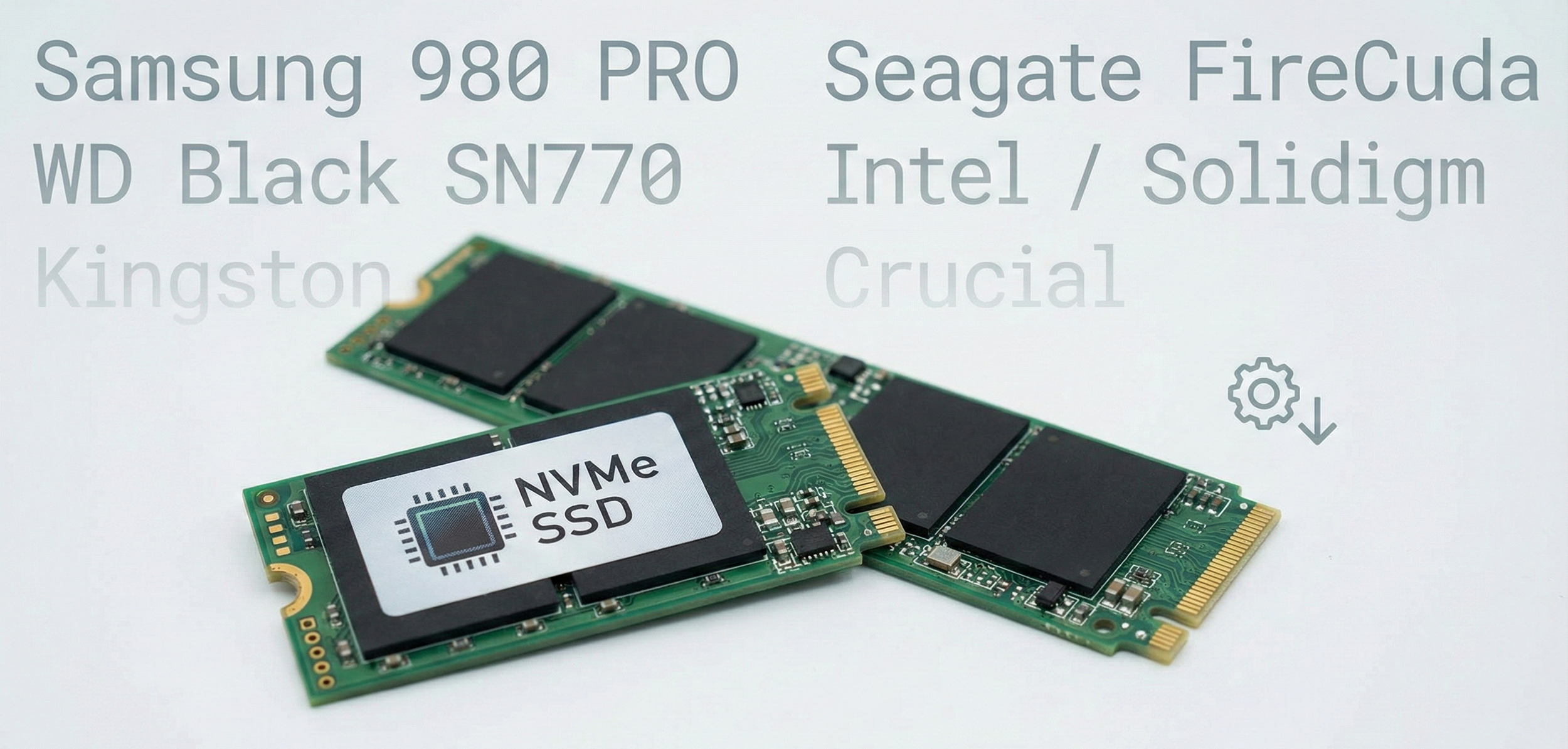
Fig 1. Two NVMe SSD's overlapping.
Note on Tech Support
This article is for educational purposes regarding software maintenance. For physical hardware failures, warranty claims, or smoke coming from your device, please contact your manufacturer directly.
Dealing with a sluggish computer is infuriating. Especially when you know you paid good money for high-performance hardware. You click a folder and you wait. You open a browser and it freezes. It feels like your machine aged five years in five months.
If you're reading this, you probably already tried the standard advice. You ran a virus scan. You cleared your browser cache. Maybe you even restarted your router. But the lag is still there. Don't give in yet.
Whether you have a custom-built rig or a standard laptop, there's good news: you can often restore system responsiveness without buying a new computer or paying for expensive parts.
Some of these insights might sound technical. If your local repair shop doesn't mention them, it's likely because they're trained to sell hardware, not optimize what you already own. We suggest looking at the data yourself.
System Latency: What The "Big Box" Industry Overlooks
Millions of PC users accept slow performance as a normal part of owning a computer. They assume electronics just "get slow" over time. This belief benefits the manufacturers because they want you to buy a new laptop every three years. But often the hardware is fine. The software management is the problem.
Slow performance is tied to a wide range of factors, but most of the general tech industry focuses heavily on "viruses" or "old RAM." If you have a slow PC, don't despair of buying a new one just yet. Your hardware, in its factory state, is actually an ally, not an enemy. Once you see the role that Firmware Drift and Silent Data Errors play in system lag, the threat of "old hardware" basically disappears.
We're going to look at some of the hidden causes of system hangs (like the recent discovery regarding Samsung drives) and what you can do to address root causes instead of just deleting files.
What is "Firmware Drift"?
Most people suffering from random freezes are actually dealing with firmware conflicts or "write errors" deep in the drive. This means your storage drive is struggling to verify data before it sends it to the processor.
Take a look at the Samsung 980 Pro. It's a high-end drive, but custom PC builder Puget Systems recently found a "surprising number of reports" regarding failures. Users reported their drives were locking up or slowing down massively.
The issue wasn't the physical drive breaking. It was a firmware bug (specifically version 3B2QGXA7) that caused the drive to report false errors.
This is exactly why standard "cleanup" tools fail. If your drive firmware is fighting your operating system, no amount of deleting temporary internet files will fix the speed. The drive enters a state of "retry loops" where it tries to read data over and over again. This looks like "lag" to you, but it's actually a safety mechanism gone wrong.
By correcting these invisible software layers (updating firmware, aligning drivers, and checking S.M.A.R.T values) you reduce the silent friction that makes a fast computer feel slow.
10 Tips to Reduce System Latency and Optimize Throughput
1. Update Critical Drive Firmware
Just like the Samsung 980 Pro issue we mentioned, your SSD has its own operating system called firmware. If this is out of date, the drive might get stuck in error-correction loops that freeze your whole system. We suggest checking the manufacturer's website (Samsung Magician, WD Dashboard, etc.) to see if your drive has a pending update. Windows Update usually doesn't catch these.
2. Audit Your "Startup Impact"
Most applications set themselves to run automatically when you turn on the PC. This creates a "parasitic load" on your RAM before you even click a mouse button. Open Task Manager (Ctrl + Shift + Esc), go to the Startup tab, and disable anything with "High" impact that you don't use immediately upon boot. You can always open them manually later.
3. Switch Power Plans to "High Performance"
By default, Windows uses a "Balanced" power plan to save electricity. This often throttles your CPU speed down when it thinks you aren't doing anything heavy. This ramp-up time causes micro-stutters. We suggest switching to "High Performance" in the Control Panel Power Options to keep the voltage steady and the processor ready.
4. Prune Browser Extensions
Modern web browsers are basically operating systems themselves. Every extension you add is a program that runs on every single page you visit. If you have five or six "Shopping Assistants" or "Grammar Checkers" running, they are eating gigabytes of memory. Go to your browser's extension menu and remove anything you haven't used in the last week.
5. Adjust Visual Effects for Performance
Windows 10 and 11 use a lot of animation for fading windows and sliding menus. It looks nice but costs system resources. You can search for "Adjust the appearance and performance of Windows" in your start menu. We suggest selecting "Adjust for best performance" or at least turning off "Animate windows when minimizing and maximizing."
6. Run the TRIM Command (For SSDs)
Solid State Drives need to do a garbage collection process called TRIM to stay fast. Usually Windows does this automatically, but sometimes it gets disabled. You can use the "Defragment and Optimize Drives" tool in Windows to force a TRIM operation. This tells the drive which data blocks are no longer in use so it can write new data faster.
7. Check for Thermal Throttling
Computer parts automatically slow down if they get too hot to prevent burning out. If your fans are loud but the computer is slow, you might be "throttling." We suggest grabbing a can of compressed air and clearing out the intake vents. If the heat has nowhere to go, the speed has nowhere to go.
8. Update Chipset Drivers (Not Just Windows Updates)
Windows Update is great for security, but it often installs generic versions of drivers. The specific "Chipset" drivers from AMD or Intel control how your motherboard talks to the rest of the PC. We suggest going to your motherboard manufacturer's support page to get the official chipset drivers. This can often resolve mysterious USB lags or sleep mode issues.
9. Clear the Temp Folder
Software often creates temporary files while it's working and forgets to delete them. Over months, this can build up to thousands of junk files that the file system has to index. You can type "%temp%" into your Windows search bar to find this folder. It's usually safe to delete the contents here (skip files that say they are currently in use).
10. Restart (Don't Just Shut Down)
This sounds simple, but in modern Windows, "Shut Down" is actually a deep hibernation mode. It saves the system state to the disk. "Restart" is the only way to fully flush the RAM and start a fresh kernel session. We suggest doing a full restart at least once a week to clear out memory leaks and zombie processes.
Services We Suggest
This is basically an extension of #2 (Audit Startup Impact) and #8 (Update Chipset). The reality is that digging through manufacturer websites for specific driver versions is tedious. And messing with the Windows Registry can be risky if you aren't 100% sure what the keys do.
At PC Spark, we developed a couple of standardized protocols to handle the deep system maintenance that most people don't want to do themselves. We suggest these options for anyone dealing with unexplained lag or high system latency.
1. The System Health Audit
This is for the person who just wants to know why the machine is slow before deciding what to do. We use industry-standard logging tools to read the "Event Viewer" history of your machine. This pinpoints the exact timestamp where the lag spikes happen and identifies the specific software process causing it. It’s a 15-minute check to see if your hardware is actually failing or if it's just software bloat.
Check Your System Health Score →2. Assisted Optimization Session
This is the full "Deep Clean" without the risk. We manually go through the 50+ background services that Windows leaves on by default (like Telemetry and Connected User Experiences) and turn off the ones you don't need. It frees up RAM and lowers CPU idle temperatures. We perform this entirely via a secure remote connection while you watch the screen, so you learn exactly what is being changed on your machine.
Book an Optimization Session →Disclaimer: These services are for software optimization and educational guidance. We do not provide hardware warranties.